
Connect your mailbox
Once your mailbox is connected, Bobi picks up what matters from your email — shipment confirmations, quotes and invoices — and can reply on your behalf, with the decision always staying with you. You can connect a mailbox two ways: in a couple of clicks with Gmail or Outlook, or manually over IMAP and SMTP if you run your own mail server.
- Choose “Connect with Gmail”In the email window stay on the basic view and click the Gmail tile.
- Sign in and give consentWe’ll redirect you to GoogleWe’ll open the Google page — sign in to your account and confirm that Bobi may read and send mail on your behalf.
- DoneAfter you consent you return to Bobi, and the mailbox is already connected.
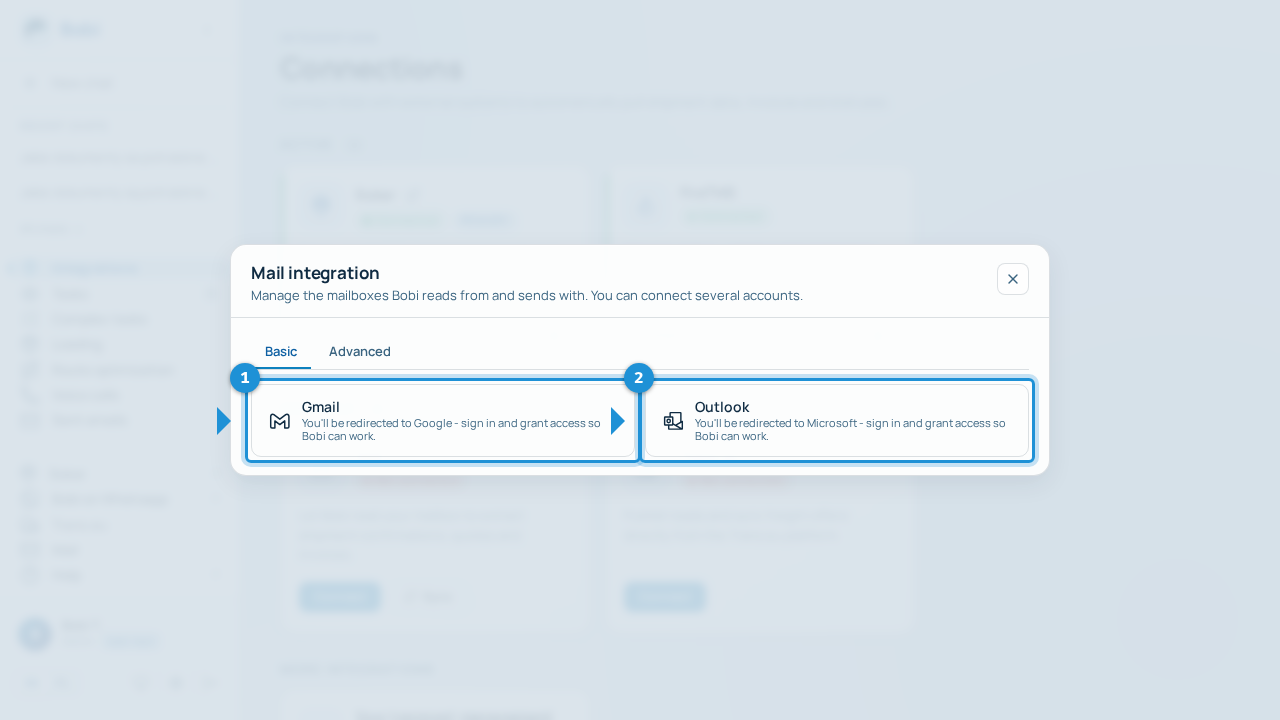
- Choose “Connect with Outlook”In the email window stay on the basic view and click the Outlook tile.
- Sign in and give consentWe’ll redirect you to MicrosoftWe’ll open the Microsoft page — sign in to your account and confirm that Bobi may read and send mail on your behalf.
- DoneAfter you consent you return to Bobi, and the mailbox is already connected.
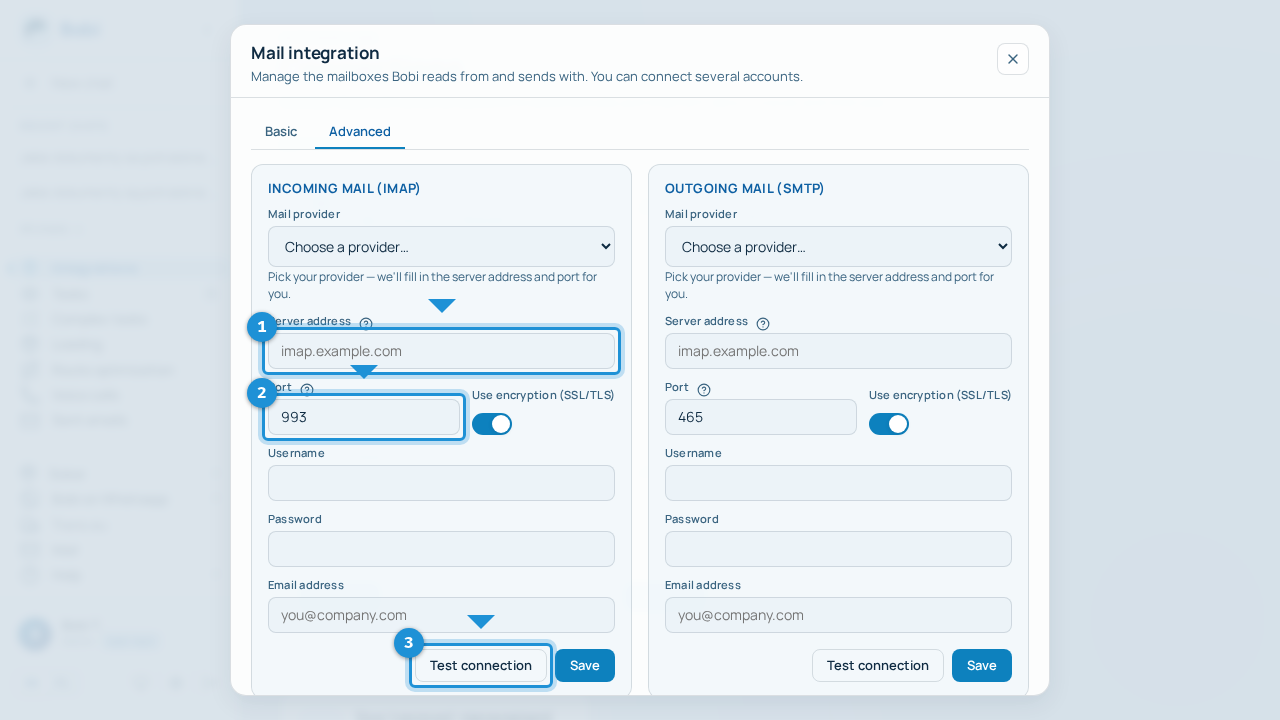
- Switch to “Advanced”In the email window switch from the basic view to Advanced.
- Pick your providerChoose your provider from the list, or select “Other / own server” — for known providers Bobi fills in the server address and port for you.
- Fill in the server detailsEnter the settings for the incoming (IMAP) and outgoing (SMTP) servers: server address, port (usually 993 for IMAP and 465 for SMTP with a secure connection), username, password and email address.
- Test and saveClick “Test connection”, and once it passes — “Save”.
What Bobi does with your email#
Once connected, Bobi reads your mailbox to catch what matters for freight — shipment confirmations, quotes and invoices — and sends mail on your behalf when you ask. The decision always stays with you: sending can be an action Bobi performs as part of Tasks, which you approve.
How to disconnect#
Open the email window and click “Disconnect”, then confirm. Bobi will then stop reading and sending mail from that mailbox — you can reconnect it any time.