Managing tasks
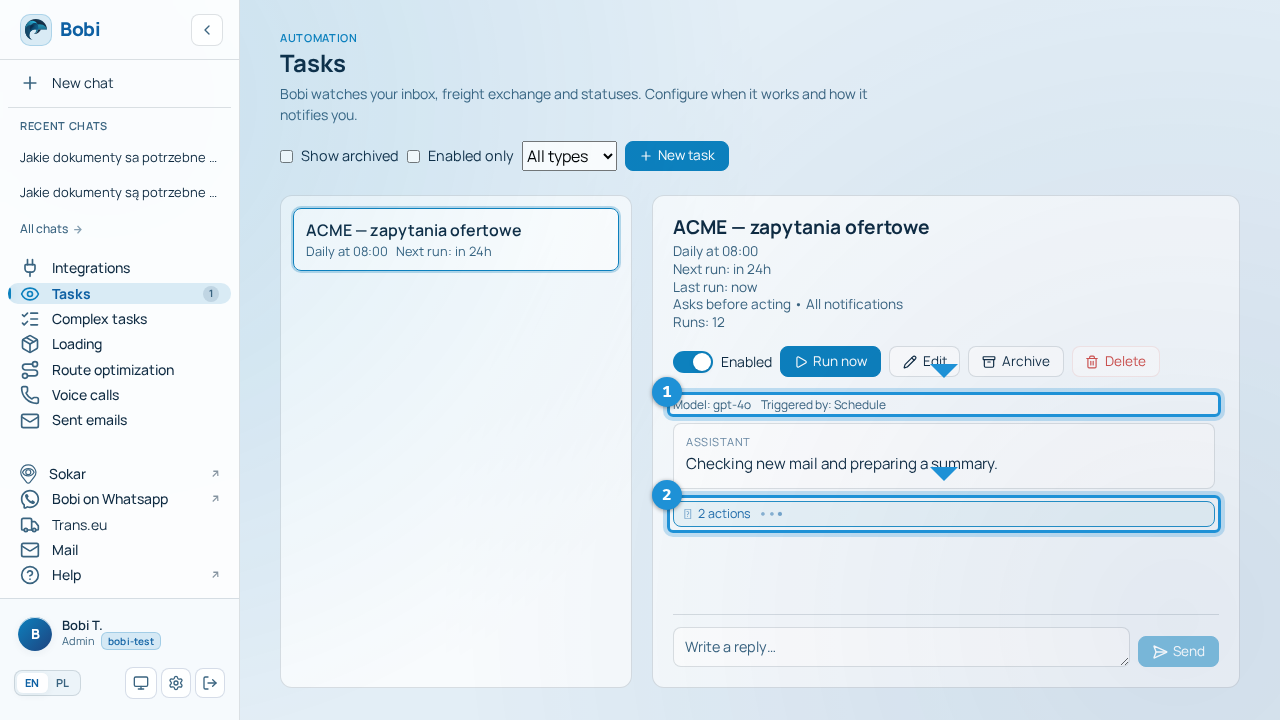
You'll find all your tasks in one place: the list on the left and the details and thread of the selected task on the right. From here you can run a task manually, change its settings, pause it for a while, or move it to the archive once it's no longer needed.
Task states#
Every task is in one of four states:
| State | What it means | How to get it running again |
|---|---|---|
| Active | Enabled and not archived — Bobi runs it according to its trigger. | — |
| Paused | Turned off with the “Enabled” toggle — it won't run until you switch it back on. | Turn the “Enabled” toggle back on. |
| Auto-disabled | Bobi paused the task itself after three failed runs in a row. | Check the prompt and permissions, fix the cause, then enable the task again. |
| Archived | Hidden from the main list. One-off tasks land here automatically 7 days after they run. | Show archived in the filters to find it. |
Everyday actions#
- Run nowRun the task immediately, outside its schedule — handy when you want to test it or need the result right away.
- EditChange the prompt, the approval mode or the task's other settings.
- Pause or resumeThe “Enabled” toggle pauses a task and resumes it whenever you like — without losing its settings.
- ArchiveHide a task from the main list once it's no longer needed, keeping its history.
- DeletePermanently remove a task you no longer need.
Filtering the list#
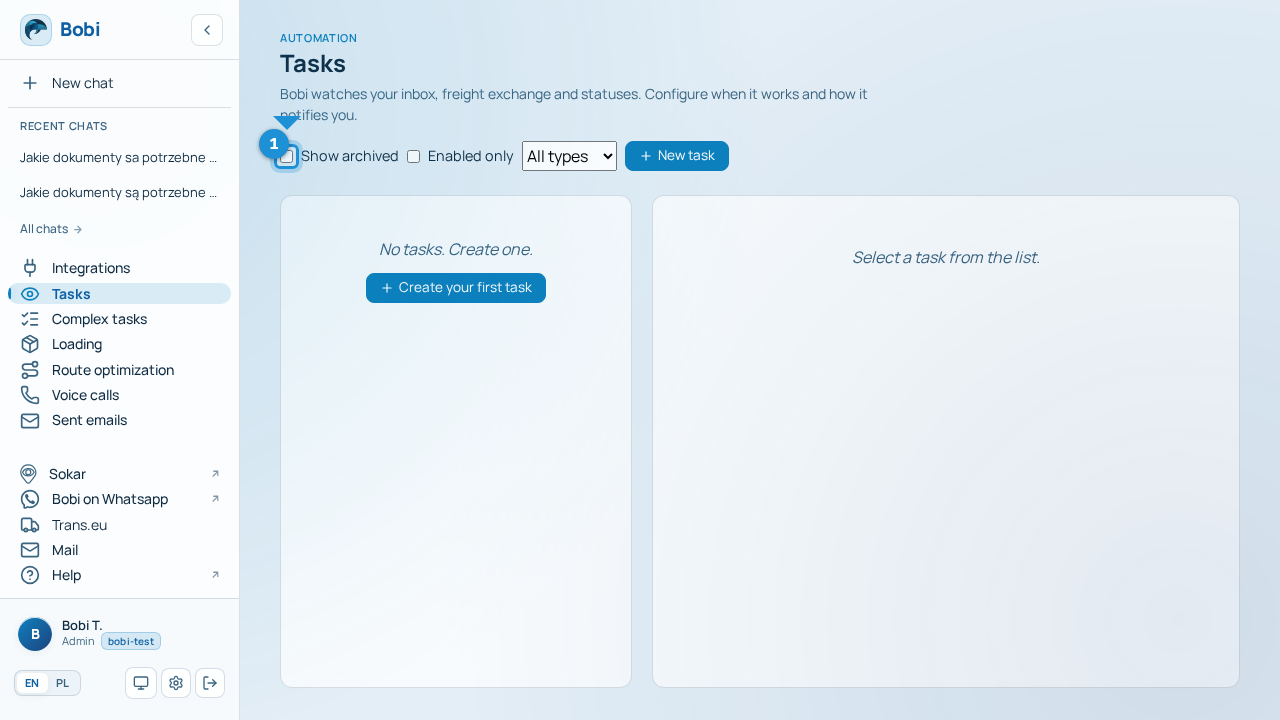
As tasks pile up, narrow the list with filters:
- Show archived — reveals tasks moved to the archive.
- Enabled only — hides paused and auto-disabled tasks.
- By trigger type — show only scheduled, event-based or one-off tasks.
Thread history#
Every task has its own thread recording each run: what Bobi checked, what it proposed and the outcome. Open a task to trace its history — it's the first place to look when something didn't work as expected.
Live activity#
While a task is running, you can watch it work in the thread. Bobi's successive steps are grouped into actions — you'll see a label such as “3 actions” — and a pulsing “Working” or “Doing: {name}” indicator means Bobi is using a tool or integration right now. When “Working on a reply…” appears, the task is waiting or wrapping up.
Replies and proposals are formatted — headings, lists and bold text make a readable report rather than raw text.