
Appearance and notifications
Tailor how the app looks and decide what Bobi should notify you about.
Theme#
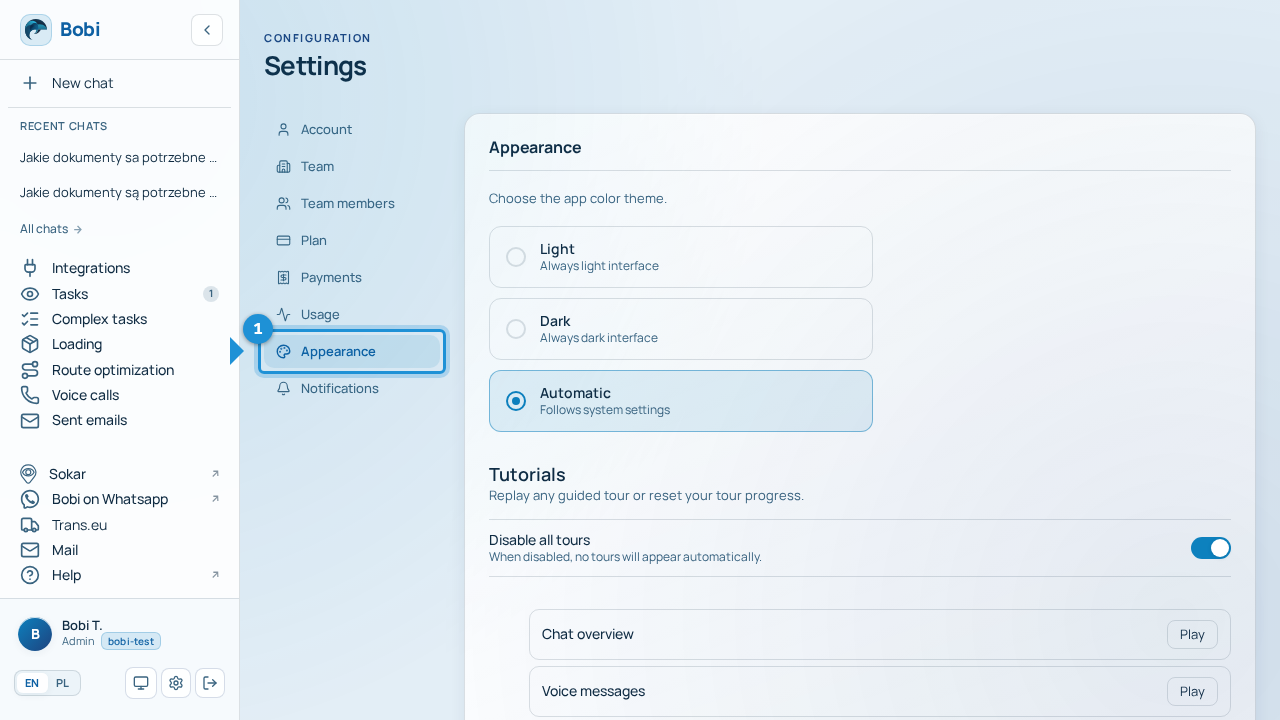
In Settings → Appearance you pick the app colour theme. You have three options:
- Light — always a light interface.
- Dark — always a dark interface.
- Automatic — adapts to your system settings.
Replay the tutorials
Below the theme picker you'll also find the option to replay the tutorials — the in-app walkthroughs. Handy when you want a reminder of how a given screen works.
Notifications#
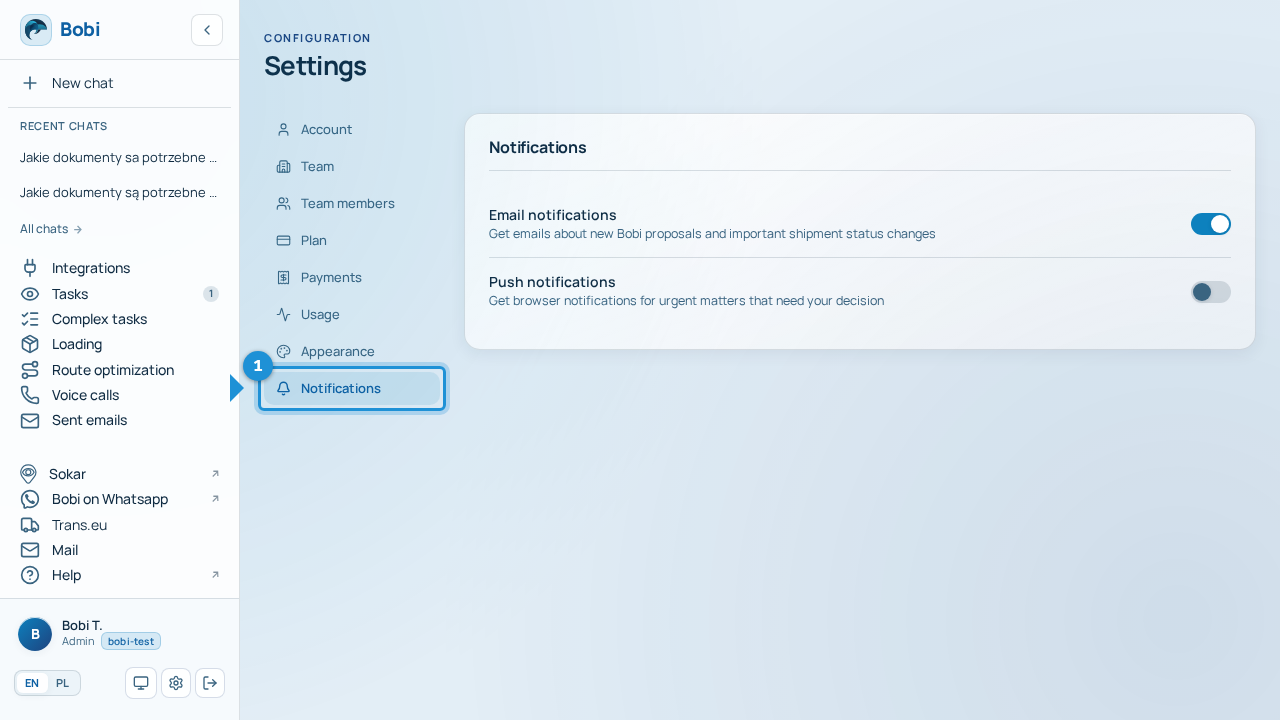
- Email notifications (on by default)You get emails about Bobi's new proposals and important shipment status changes.
- Browser notifications (off by default)You receive notifications about urgent matters that need your decision. When you turn them on, your browser will ask for permission to show notifications.
Settings are saved in this browser
Your notification preferences are saved in this browser, not on your account. On another computer or browser you'll set them separately.