
Plan, payments and invoices
Your plan sets the account limits — among others the number of team members, loads per month and access to AI features. Payments and invoices are handled by the secure Stripe gateway: you pay for and change your subscription in the Stripe portal, and you download invoices straight from its documents.
Available plans#
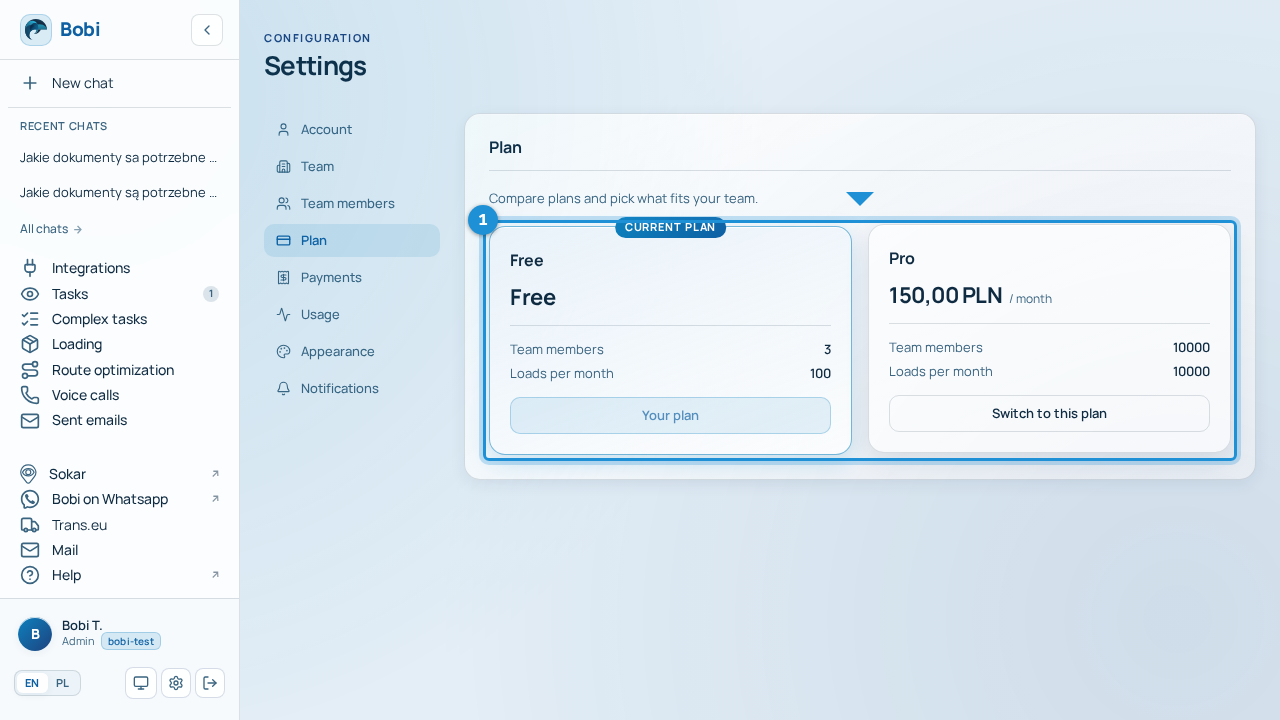
In Settings → Plan you'll see a grid of available plans ordered from the cheapest. Each card shows:
- the plan name and price with a “/ month” suffix (the free plan is labelled “Free”),
- Team members — how many people you can have in your team,
- Loads per month — the monthly load limit.
A value of “Unlimited” means there's no cap. Your current plan is marked with a “Current plan” badge.
Changing your plan#
- Pick a planOn the plan you want, click “Switch to this plan”. Your current plan has a disabled “Your plan” button.
- Finish the paymentYou'll see “Redirecting to checkout…” and move to the secure Stripe checkout, where you pay for the plan change.
Subscription#
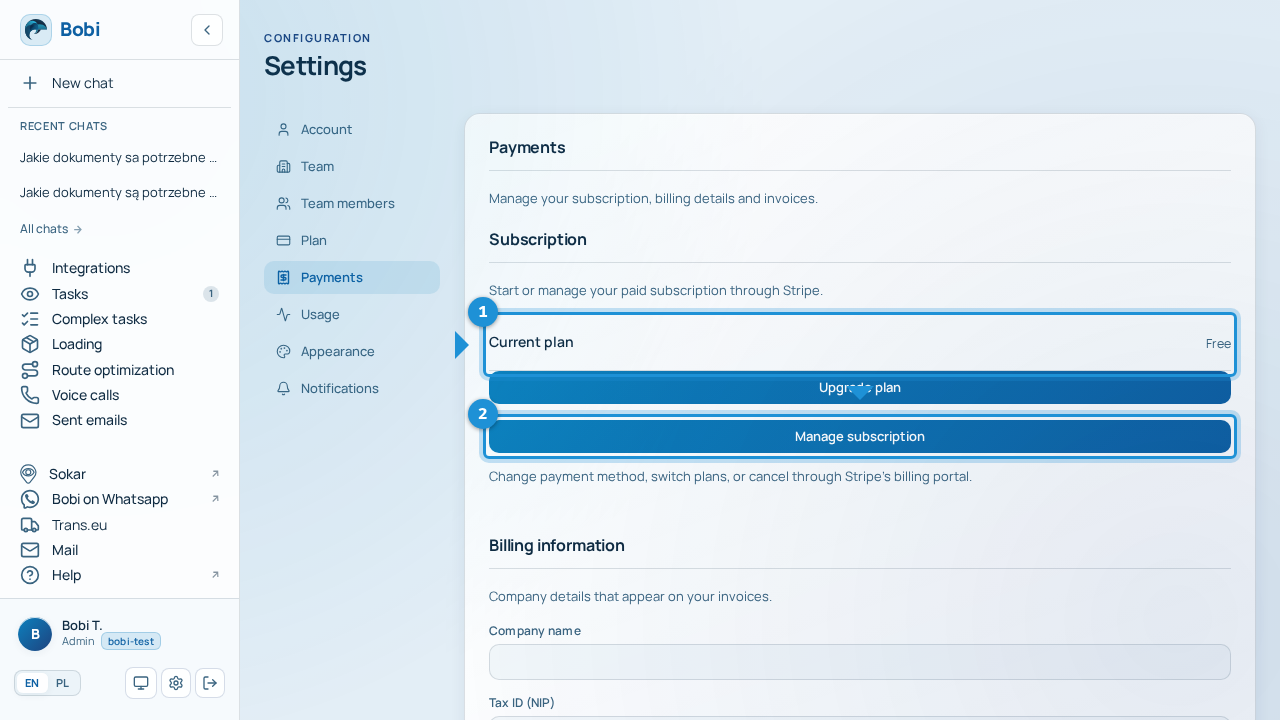
- Click “Manage subscription”The Stripe portal opens, where you can change your payment method, switch plans or cancel the subscription.
Billing information#
In the Payments section you fill in the company details shown on invoices — name, VAT ID and address (street, city, postal code, country). After entering them, click “Save billing info” so they appear on future invoices.
You pick the Country from a dropdown — today Poland and the United States are available. The country you choose goes into your billing information and appears on your invoices.
- Pick a countryExpand the “Country” field and choose Poland or the United States.
- Save the detailsClick “Save billing info” so the country appears on future invoices.
Invoices#
Your invoice history comes from Stripe. Each row is one invoice, and the “View invoice” button opens its Stripe-hosted document. Invoice statuses are: Paid, Open, Uncollectible, Void and Draft. If you don't have any invoice yet, the list is empty.